The Calibration Sample is a square test piece for comparing a machine's cutting, marking and drilling with each other. It is a square cut profile with one corner chamfered, four marked cross hair lines that meet at the centre, and an optional drilled hole in the centre with an optional marked box around it. After cutting, the part can be measured for size and squareness, and the marking and the hole can be checked against the centre lines to see whether the marking tool and the spindle are offset from the cutting tool.
It appears in the shapes library under Other Shapes and Tools.
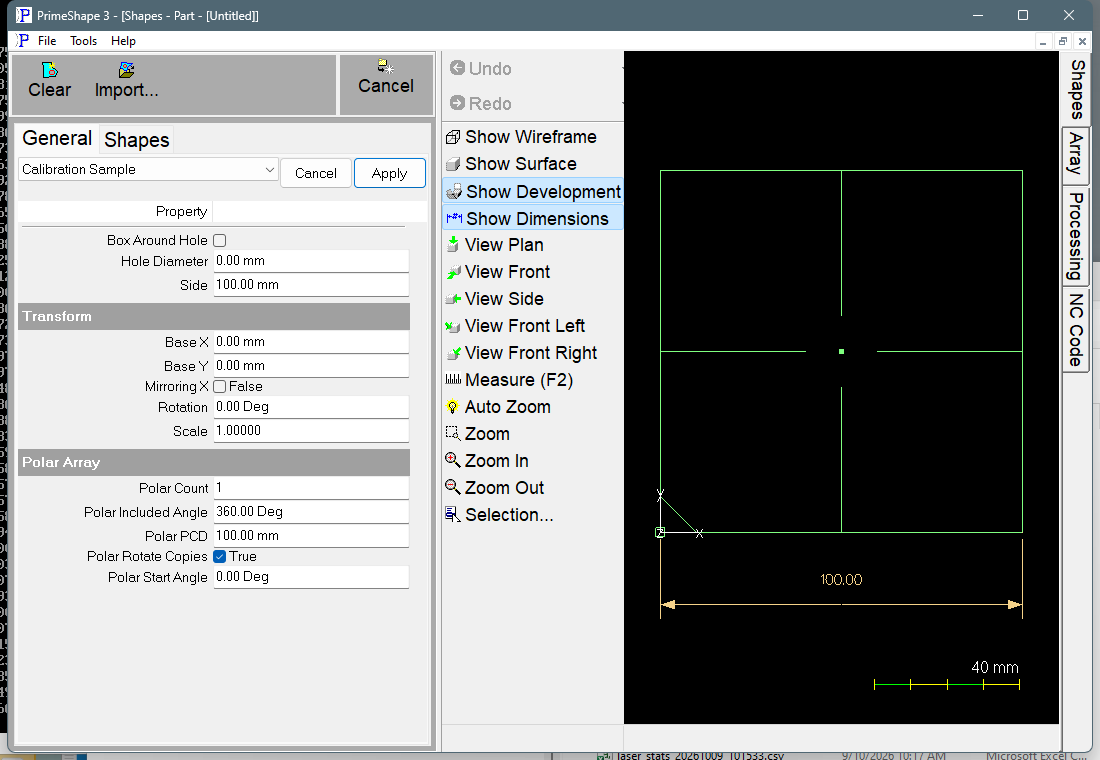
Calibration Sample in PrimeShape: the property page (left) and the shape with its dimensions (right).
Insert point and layout
The insert point is the bottom left corner of the square's bounding box, and the square is built up and to the right of it, Side long in X and in Y. The corner at the insert point itself is chamfered off, so the outline does not pass through the insert point.
•Outline – a closed square of side Side with a 45° chamfer at the bottom left corner. Each leg of the chamfer is 0.1 x Side. The chamfer identifies the bottom left corner, so the part can be measured in the same orientation it was cut in. The outline is an ordinary closed profile with no tool hint applied, so it is processed as a normal cutting profile.
•Cross hairs – four straight lines on the centre lines of the square, one for the middle of each side. Each line starts 0.1 x Side short of the centre and runs out to the edge, so they leave a gap of 0.2 x Side across the middle. They are tagged as marking with no kerf, so they are processed with the marking tool.
•Centre hole – when Hole Diameter is greater than 0, a round hole of that diameter at the centre of the square, tagged to be drilled with the spindle at that diameter. When Hole Diameter is 0 a single point is placed at the centre instead.
•Box around the hole – when Box Around Hole is ticked and Hole Diameter is greater than 0, a square whose sides touch the hole (side length = Hole Diameter), centred on it and tagged as marking. Its bottom left corner is left open, so it is never processed as a closed cutting profile. The gap is 2 mm, or a quarter of the Hole Diameter if that is smaller.
The shape shows one dimension, Side, along the bottom edge.
Properties
Lengths are in the current units (mm or inch). The defaults are 100 mm, or 4 in when the program is set to inches.
Property |
Description |
Default |
Side |
Length of each side of the square (mm or inch). The chamfer, the cross hairs and the centre all scale with it. Minimum 5 mm (0.197 in). An entry below the minimum is refused: a warning dialog shows the allowed range and the previous value is kept. No maximum is set. |
100 mm (4 in) |
Hole Diameter |
Diameter of the drilled hole at the centre of the square (mm or inch). 0 means no hole; a point is left at the centre instead. Minimum 0. A negative entry is refused with the same warning as Side. |
0 (no hole) |
Box Around Hole |
When ticked, a marked square is drawn round the hole with its sides touching the hole. Has no effect while Hole Diameter is 0. |
Off |
Notes and limits
The only limits are the minimums on the property page (Side at least 5 mm, Hole Diameter at least 0). The shape does not check its geometry against those limits. In particular:
•The hole is not checked against the square. A Hole Diameter larger than Side crosses the outline (equal to Side touches it), and the shape is still built.
•The cross hairs stop 0.1 x Side from the centre. A Hole Diameter larger than 0.2 x Side (20 mm on the default 100 mm sample) runs over the inner ends of the cross hairs.
•If the build raises an error, the property page shows a red line reading "Warning: Cannot build shape from these parameters". The code does not check for any particular input that causes this.
The marking and drilling are tags on the geometry that tell processing which tool to use. The marking tag is applied in PrimeCut, PrimeShape and PrimeCut3. On a controller with no marking tool, the cross hairs and box use the tool set in the processing options.
If a tag cannot be applied, the code asserts. Assertions are checked in debug builds only; in a release build the geometry is still added, without the tag.
Every 2D shape also has the Transform properties (Base X, Base Y, Rotation, Scale, Mirroring X) and the Polar Array properties, listed after the shape's own properties.