The Automation tab of Global Settings controls scripting in PrimeCut, and whether other programs - including AI assistants such as Claude - can drive PrimeCut. Both are off until an administrator turns them on. Changes take effect the next time each user logs in.
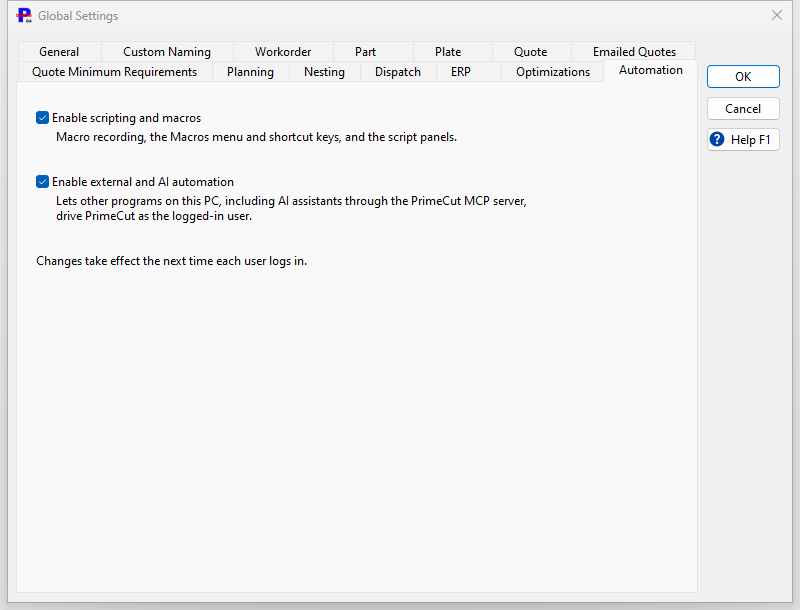
Setting |
What it allows |
Enable scripting and macros |
Macro recording, the Macros menu and shortcut keys, and the script panels. 64-bit PrimeCut only. |
Enable external and AI automation |
Lets other programs on the same PC, including AI assistants through the PrimeCut MCP server, drive PrimeCut as the logged-in user. |
Who can use it
Running scripts and macros, and letting an AI assistant or another program drive PrimeCut, also needs the SQL Query / AI Scripting permission - the SQL Query permission, renamed, given to a user group in the user group editor. A user without it can still record and edit scripts, but PrimeCut will not run them for that user, and an AI assistant connected for that user is refused. The Action History, or the assistant, says why.
Setting up an AI assistant (PrimeCut MCP server)
PrimeCutMCP.exe is a Model Context Protocol (MCP) server. An AI assistant that supports MCP starts it, and through it can read what PrimeCut is showing and work PrimeCut for the user - open screens, fill in fields, run actions and scripts.
1.In Global Settings > Automation, tick Enable external and AI automation and save. Make sure the user's group has the SQL Query / AI Scripting permission. Each user picks this up at their next login.
2.On the PC where the user runs PrimeCut, find PrimeCutMCP.exe. It is installed beside PrimeCut4.exe: C:\Program Files\Primecut4\PrimeCutMCP.exe on a client PC, C:\PC4\Primecut4\Win64\PrimeCutMCP.exe on the server.
3.Add it to the AI assistant's MCP servers. For Claude Desktop, open Settings > Developer > Edit Config and add to claude_desktop_config.json:
{ "mcpServers": { "primecut": { "command": "C:\\Program Files\\Primecut4\\PrimeCutMCP.exe" } } }
For Claude Code, run:
claude mcp add primecut -- "C:\Program Files\Primecut4\PrimeCutMCP.exe"
Other assistants that support MCP take the same command - the path to PrimeCutMCP.exe, no arguments.
4.Restart the assistant, start PrimeCut and log in. Ask the assistant something like "What is PrimeCut showing?" - it should answer from PrimeCut.
Good to know
•The assistant drives the PrimeCut running on the same PC as the same Windows user. PrimeCut must be open and logged in.
•It can do anything that user can do in PrimeCut, so connect it as a user with suitable rights.
•Everything it does is shown in PrimeCut's Automation console and Action History panels, so the user can see what it is doing.
•PrimeCutMCP.exe opens no network port: the assistant starts it on the same PC and talks to it directly.
•To turn it off, untick Enable external and AI automation. It takes effect at the next login; an assistant already connected keeps working until PrimeCut is closed.