With Enable scripting and macros turned on in Global Settings > Automation, PrimeCut has three script panels, shown in a strip down the right-hand side of the main window. Each panel has a heading that collapses it out of the way.
Panel |
What it is for |
Script Debugger |
Write, open and save scripts (.pcs) in tabs, with colouring and command completion (Ctrl+Space), and run them. |
Action History |
What has been done, as script lines, and any script messages and errors. Earlier versions called it Script Output. |
Automation Console |
What another program or an AI assistant is doing in PrimeCut. |
Opening the panels
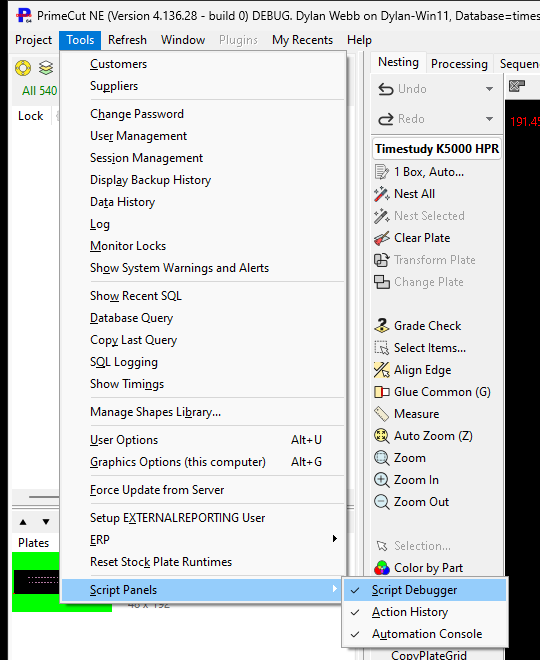
Open each panel from the Tools menu:
Panel |
How to open it |
Script Debugger |
Tools > Script Panels > Script Debugger |
Action History |
Tools > Script Panels > Action History |
Automation Console |
Tools > Script Panels > Automation Console. With only Enable external and AI automation turned on (scripting off), the Tools menu has just Tools > Automation Console, which opens and closes the console on its own. |
Keyboard Map |
Not a panel, but where scripts get their hotkeys: Help > Keyboard Map..., or the keyboard button on the Script Debugger's toolbar - see Keyboard Map. |
•A tick beside a panel's name in the menu means it is open. Choose it again to close it, or click the x in the panel's heading; - in the heading collapses it instead. Closing the last open panel closes the strip.
•When the strip is closed, choosing a panel opens the strip with just that panel. Choose the others from the same menu to add them.
•PrimeCut remembers which panels were open, and the strip's width, and opens them again at the next login.
•The panels have no shortcut keys or toolbar buttons; open them from the menu.
•The Tools entries appear when you log in. If an administrator turns scripting on while you are logged in, log in again to see them.
•The strip stays in front of its own PrimeCut window, but never in front of other programs.

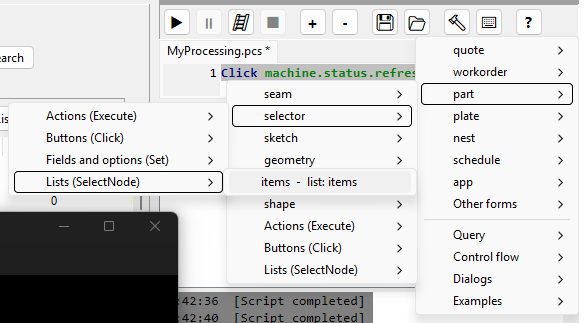
To add a command, type it (Ctrl+Space completes the word), or pick it from the Script Debugger's right-click menu or its Build a Line button (the hammer); the command goes in at the cursor, ready to fill in.
The menu has a submenu for each mode - quote, workorder, part, plate, nest, schedule and app - holding that mode's forms and the forms that go with it (Customers under quote, Machines under schedule, and so on); every other form is under Other forms, and below them come Query, Control flow, Dialogs and Examples. A long submenu is split by what the command does - Actions (Execute), Buttons (Click), Fields and options (Set), Tabs, Lists - and then into alphabetical pages, so no list is longer than twenty entries.
The panels run separately from the rest of PrimeCut, so they stay responsive - and a script can be paused or stopped - while PrimeCut is busy.
What Action History records
Action History writes what you do as script lines that do it again: buttons and actions, fields set, tabs chosen, list rows selected, expanded or collapsed, cells edited, list filters, menu items picked and files opened. A mode button on the Start screen is written as Mode Nest;, and a recent item as the mode and its id - Mode Nest {"items":[911059]}; - so a script opens the same item without going through the recent-items menu.
Tick Record as COM calls to write the lines from then on as the calls another program makes, for example Click("parts.refresh"), ready to paste into PowerShell or Python or to give to an AI assistant. Lines already written stay as they are.
A long line is shown with its settings on separate, indented lines so it is easy to read. It is still one command: copied into a script, it runs the same as when it was on one line.
Running a script
Button |
Does |
Play (Resume) |
Runs the script, or carries on from where it paused. |
Pause |
Pauses after the current line. |
Step One Line (ladder) |
Runs the next line, then pauses again. |
Stop |
Ends the run. |
The keys: in the Script Debugger F9 plays the tab and F8 steps one line. Anywhere in PrimeCut, F9 carries on a paused run, Shift+F9 or Pause/Break stops a run, and Esc stops a script that is running (not one that is paused).
When a line fails, the error is shown in Action History and the run pauses at that line.
Asking PrimeCut for an answer
Query, NodeCount and VSTContents give an answer, and the answer always goes into a variable:
Var mode = Query AppMode;
Var rows = NodeCount PartSelectEditorWnd/vstItems;
Var list = VSTContents PartSelectEditorWnd/vstItems;
Var ok = HasPermissions AIScripting;
Query takes AppMode, ActiveEditor, EditorRoot, TopState or ExternalAutomation (whether Enable external and AI automation is on). HasPermissions is True when the logged-in user has every permission named, for example Settings or AIScripting; If ok; then tests it. A line without the variable, such as Query AppMode;, stops with the error Query needs a variable for its answer: Var r = Query AppMode; - add the Var name = in front.
A variable can then be used in expressions and paths, for example For i = 0 To rows - 1; or SelectNode PartSelectEditorWnd/vstItems {"nodeIndex":<<i>>};.
Opening a mode and items
Mode changes the mode as the Start screen does, and can open items by id at the same time:
Mode Parts;
Mode Nest {"items":[911059],"readonly":true};
Mode Workorder {"items":["WO-123"],"by":"InvoiceNumber"};
Items are parts, workorders, quotes or plates, by their id or by another column whose values are unique - such as ERPID, or the invoice number or part name when Global Settings makes them unique. readonly opens them without locking them. A primecut:// link opens its items the same way.
For testing scripts, Screenshot MainWnd {"file":"C:\Pictures\main.png"}; saves a window as a PNG picture that PrimeCut draws itself, so it is right even when PrimeCut is covered or minimised.
Every command another program or an AI assistant can give PrimeCut can also be a script line, in the same form.
Scripting is available in the 64-bit PrimeCut only. The 32-bit client does not offer scripting, macros or AI automation.