The Marking Text shape places a line of text on a part, drawn in the default font. It is used to mark part numbers, job numbers and other identification onto the plate. With As Macro set to True the text is kept as one text item for text marking (see Text Marking); with As Macro set to False the characters are added to the part as ordinary geometry (see As Macro).
It appears in the shapes library under Basic Shapes and Primitives.
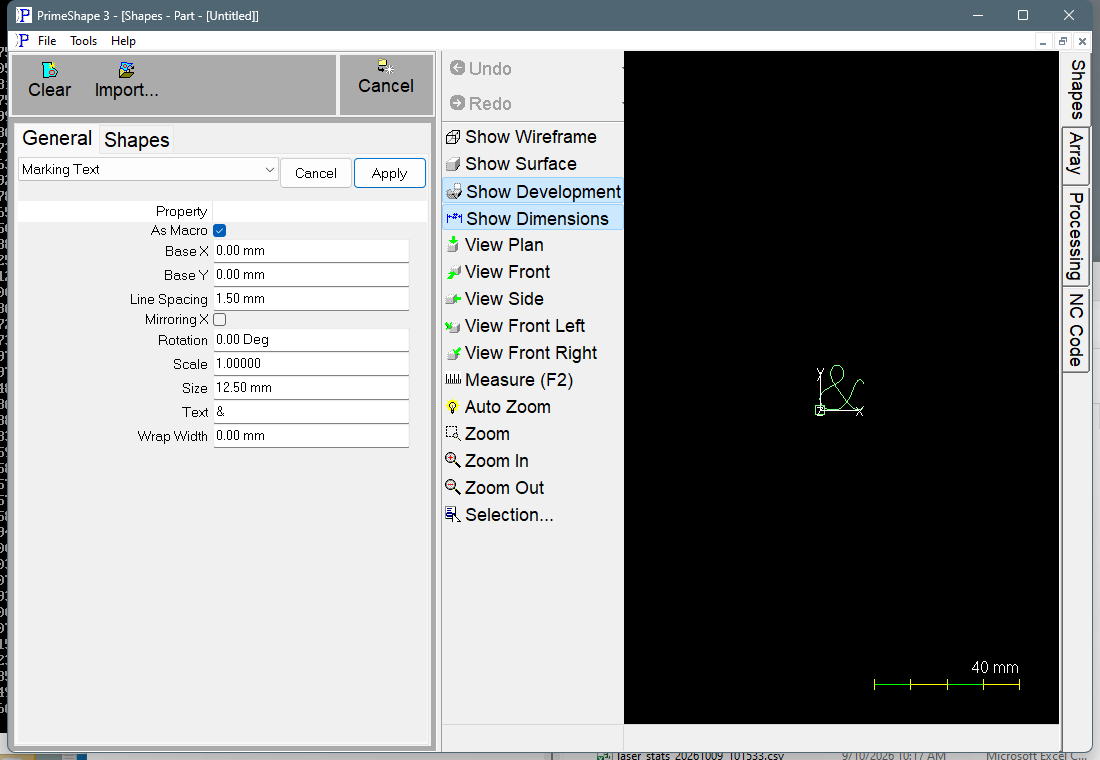
Marking Text in PrimeShape: the property page (left) and the shape with its dimensions (right).
Insert point and layout
The insert point is the bottom left corner of the text. The characters run from left to right along +X, and Size is the character height along +Y.
If the text has more than one line, the whole block sits above the insert point: the bottom of the last line is on the insert point and the earlier lines are stacked above it, each Line Spacing x Size higher than the one below. A new line is started where the text contains \P (or \p).
Properties
Property |
Description |
Default |
Text |
The characters to draw, typed on one line. Type \P (or \p) to start a new line. A backslash is not drawn itself: any other character after it is drawn as normal, so type \\ to draw one backslash. |
& |
Size |
Character height (mm or inch). The minimum is 2 mm (0.079"); a smaller value is set to 2 mm. |
12.5 mm (0.5 in) |
Wrap Width |
Line length along X (mm or inch) at which the text breaks onto a new line. 0 means no wrap. A negative value is set to 0. A line is broken after the character that takes it past Wrap Width, so a word can be split across two lines. Use \P to choose where a line ends. |
0 (no wrap) |
Line Spacing |
Distance from one line to the next, as a multiple of Size: 1.5 puts the lines one and a half character heights apart. Only matters when the text has more than one line. There is no lower limit; 1 makes the lines touch and smaller values overlap them. See the note below about the unit shown in this field. |
1.5 (shown as 1.5 mm; 0.059" in inch units) |
As Macro |
True – the shape is added to the part as one text item, which keeps the text and its size so it can be processed as text marking (see Text Marking). False – when the shape is added to the part the text is broken up into the lines and arcs of each character, which are then ordinary part geometry and are processed like any other geometry. |
True |
Wrap Width and \P can be used together. Each \P always starts a new line, and any line that is still longer than Wrap Width is broken again.
Line Spacing is a plain multiplier, but its field is a length field and shows a length unit. With metric units the number is shown as entered (1.5 shows as 1.5 mm). With inch units the number shown is the multiplier divided by 25.4 (1.5 shows as 0.059"), and a value typed in inches is multiplied by 25.4, so typing 1.5 gives a spacing of 38.1 x Size. In inch units leave the default or type the multiplier divided by 25.4.
Position, rotation, scale and mirroring
Unlike most shapes, Marking Text lists Base X, Base Y, Rotation, Scale and Mirroring X straight after As Macro, not in a separate Transform group. Base X, Base Y, Rotation and Scale work as described in Shape Transform Properties: Rotation turns the whole text about the insert point.
Mirroring X (default False) is set on the Marking Text shape itself. When it is True the characters are flipped about the X axis through the insert point: every Y value changes sign, so the text is upside down and each letter is flipped top to bottom, while the left-to-right order of the characters is unchanged. The flip is applied before Scale and Rotation. With As Macro set to True it is applied to the text item itself; with As Macro set to False it is applied as the mirroring of the insert, which applies to the character geometry.
Limits
The shape has no Polar Array properties; place several Marking Text shapes to repeat the text. The shape does not show the "Cannot build shape" warning on its property page. If the text cannot be built, nothing is drawn, so check the shape after changing its values.