The Camber is a curved strip: two straight vertical ends joined by two arcs of the same radius. The top arc bulges outward (convex) and the bottom arc bulges up into the part (concave). The bottom arc is the top arc moved straight down by the Height, so the strip is the same height across its whole width. Use it for a curved strip or gusset whose two long edges follow the same arc. The shape has no alternative names.
It appears in the shapes library under Gussets, Other Shapes and Tools.
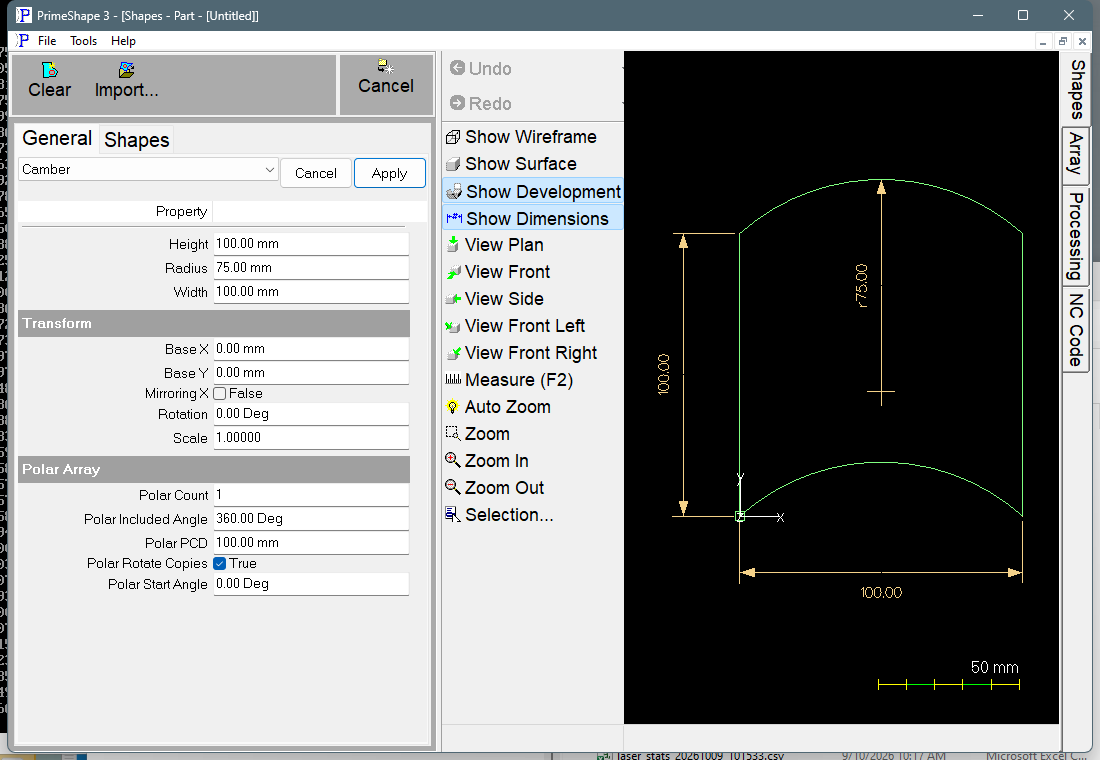
Camber in PrimeShape: the property page (left) and the shape with its dimensions (right).
Insert point and direction
The insert point (Base X, Base Y) is the bottom left corner, where the left end meets the bottom arc. The shape is one closed outline built to the right and upward from there:
•The left end runs straight up (+Y) from the insert point for the Height.
•The top arc runs from the top of the left end to a point Width along +X, curving upward.
•The right end runs straight down for the Height, back to the level of the insert point.
•The bottom arc returns to the insert point, curving upward into the part.
Width is the straight-line distance (chord) between the two ends, not the length along the arc. Each arc rises above its ends by the rise (sagitta) = Radius − √(Radius² − Width² / 4). The overall size of the part is therefore Width by (Height + rise), measured from the bottom edge at the insert point. With the default values the rise is about 19.1 mm, so the default part is 100 mm wide and about 119.1 mm tall.
The Height dimension is drawn beside the left end, the Width dimension along the bottom between the two lower corners, and the Radius dimension as a radius from the centre of the top arc to that arc. Rotation turns the whole shape, arcs included (see Transform).
Properties
Property |
Description |
Default |
Width |
Straight-line distance along +X from the left end to the right end; this is the chord of both arcs (mm or inch). Not range-checked. The arcs are only defined when Width is no more than 2 x Radius. |
100 mm (4 in) |
Height |
Length of the two straight ends, measured along +Y. This is also the vertical distance between the top and bottom arcs at every point across the width (mm or inch). Not range-checked. |
100 mm (4 in) |
Radius |
Radius of both arcs (mm or inch). A smaller radius gives a deeper curve for the same Width; a radius of exactly half the Width gives two half circles. Not range-checked. The arcs are only defined when Radius is at least half the Width. |
75 mm (3 in) |
Limits and errors
•The Radius must be at least half the Width. No arc of a smaller radius can pass through both ends. The code does not check this. The arc angle is then outside the range of asin, so the bulge is not a number and the outline is not a valid arc. The shape code has no check that raises an exception for this case, so the red Warning: Cannot build shape from these parameters line is not expected to appear. Check the Radius after changing the Width, and do not cut a part drawn with an invalid Radius.
•The property page sets no minimum or maximum on Width, Height or Radius, so it does not reject zero or negative values. Enter positive values.
•The arcs are always the shorter arc between the two ends, so they never curve more than a half circle.
•A Width of 0 collapses the shape to a straight line. A Height of 0 puts the two arcs on top of each other. Neither is a valid part.
•The Height can be smaller than the rise of the arcs. The two arcs never cross, because one is a copy of the other moved down by the Height, but the result is a thin curved strip.
Every 2D shape also has the Transform properties (Base X, Base Y, Rotation, Scale, Mirroring X) and the Polar Array properties, listed after the shape's own properties.