The Forming Template is a radius and angle gauge for checking a formed (folded or bent) part. It is a flat strip of a given Width with two straight legs of equal length, the legs being the Included Angle apart. To check the inside of a fold, the convex edge of the template has the Radius and is placed inside the fold. To check the outside of a fold, the concave edge has the Radius and is placed over it. The template can carry a hanging hole at the end of leg 2 and marking text giving the radius and angle. It was built to cover the customer scripted Check Inner Radius and Check Outer Radius templates.
It appears in the shapes library under Other Shapes and Tools.
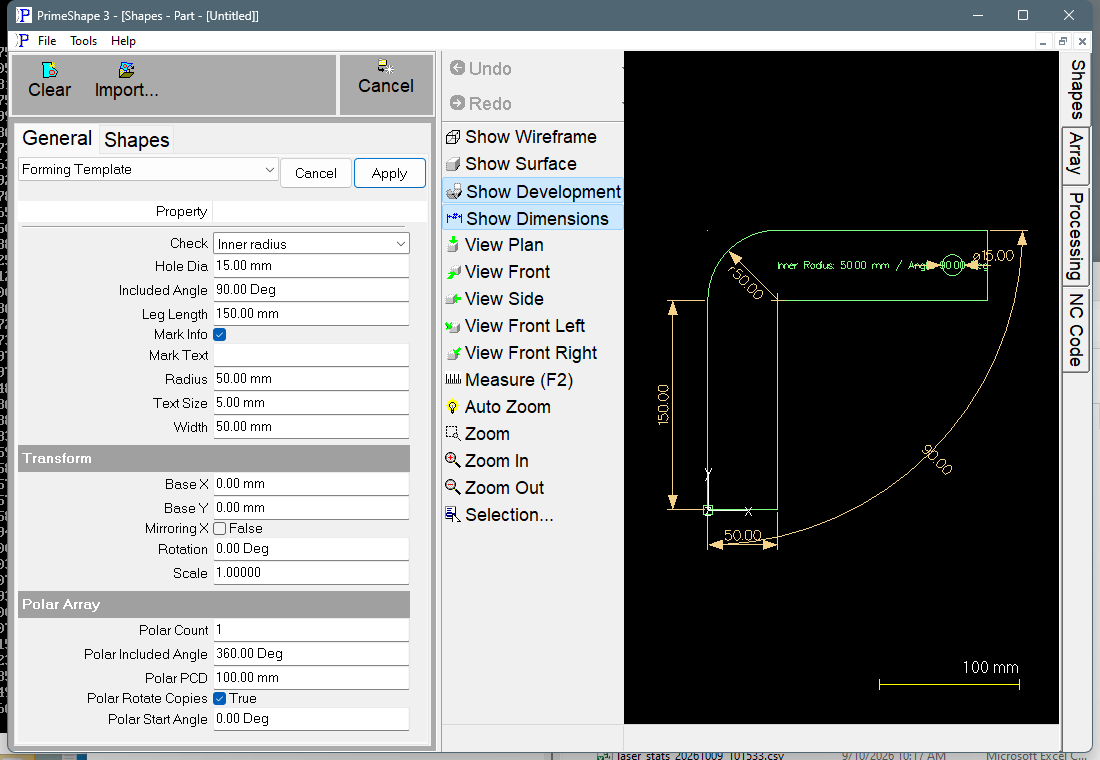
Forming Template in PrimeShape: the property page (left) and the shape with its dimensions (right).
Insert point and orientation
The insert point is the bottom left corner of the template. Leg 1 runs straight up the Y axis, with its left (outside) edge on the axis and its Width to the right. At the top of leg 1 the strip bends clockwise, to the right, and leg 2 runs away from the bend. The bend turns through 180° minus the Included Angle, so at the default 90° leg 2 runs to the right along X. At 180° there is no bend and leg 2 carries on straight up the Y axis, so the template is a flat strip.
The left and top edges (the outside of the bend) are the convex edge; the right and bottom edges (the inside of the bend) are the concave edge. Which of the two has the Radius is set by Check:
•Inner radius – the convex edge has the Radius, and the concave edge has Radius – Width. When Radius – Width is 0 or less the concave edge is a sharp corner, where its two straight edges meet on the bisector of the bend, instead of an arc.
•Outer radius – the concave edge has the Radius, and the convex edge has Radius + Width.
If that sharp inside corner would fall at or below the bottom of leg 1 (y = 0), there is no room for a concave edge and the template is cut solid. The end line of leg 2 is extended until it reaches the bottom of leg 1 (y = 0), and the bottom of leg 1 runs straight from the insert point to that point. The Width dimension is hidden on a solid template.
The hanging hole is centred across the strip, half the Width back from the end of leg 2. The marking text is centred on the middle of leg 2 and reads along the leg, away from the bend.
Properties
Lengths are in the current units (mm or inches); angles are in degrees. The defaults shown are for a new shape; the inch defaults are used when the program is set to inches.
Property |
Description |
Default |
Check |
Which side of the fold the template checks: Inner radius (the convex edge has the Radius and fits inside the fold) or Outer radius (the concave edge has the Radius and fits over the fold). |
Inner radius |
Included Angle |
Angle between the two legs, the angle of the fold being checked. 180° is flat (no bend). Must be more than 0° and no more than 180°. |
90° |
Radius |
Radius of the edge that touches the part: the convex edge for Inner radius, the concave edge for Outer radius. 0 gives a sharp bend on that edge. Cannot be negative. |
50 mm (2 in) |
Leg Length |
Length of the straight part of each leg, from where the bend ends to the end of the leg. Both legs are the same length. Must be greater than 0. |
150 mm (6 in) |
Width |
Width of the strip, across each leg. Must be greater than 0. |
50 mm (2 in) |
Hole Dia |
Diameter of the hanging hole at the end of leg 2. 0 gives no hole. Cannot be negative, must be less than Width, and Leg Length must be at least (Width + Hole Dia) / 2. |
15 mm (0.6 in) |
Mark Info |
When ticked, the marking text is added along the middle of leg 2. |
Ticked |
Mark Text |
The text to mark. Left blank, the text is built from the settings in the form Inner Radius: (or Outer Radius: for an Outer radius template) followed by the Radius, then / Angle: and the Included Angle, each in the current display units. The Radius shown is the Radius property in both modes. |
Blank |
Text Size |
Height of the marking text. The minimum is 2 mm (about 0.08 in). |
5 mm (0.2 in) |
The dimensions drawn on the shape are named after these properties. Included Angle and Leg Length are drawn on the edge that touches the part, Radius at the middle of the bend, Width across the bottom of leg 1 and Hole Dia on the hole. The Radius dimension is hidden when Radius is 0 or the template is flat, the Hole Dia dimension when there is no hole, and the Width dimension when the template is solid.
Limits
The shape is checked every time it is built. If any of these conditions is broken the shape is not built, and the property page shows the red warning bar Warning: Cannot build shape from these parameters. The bar does not say which limit was broken, so check the values against this list:
•Included Angle must be more than 0 and no more than 180 degrees.
•Radius cannot be negative.
•Width must be greater than zero.
•Leg Length must be greater than zero.
•Hole Dia cannot be negative.
•Hole Dia must be less than Width.
•Leg Length too short for the hole – Leg Length is less than (Width + Hole Dia) / 2.
•Hole does not fit - reduce Hole Dia or Width, or increase Radius or Leg Length – on a solid template the hole would reach the bottom edge of leg 1 (y = 0).
The edge that touches the part is drawn at exactly the Radius. The shape has no kerf setting of its own, so a kerf offset applied by the cutting process moves that edge. Keep the kerf on the waste side of it, or allow for it when you cut.
Every 2D shape also has the Transform properties (Base X, Base Y, Rotation, Scale, Mirroring X) and the Polar Array properties, listed after the shape's own properties.