The Operator App is a version of PrimeCut you open in the web browser on a phone or a tablet. It is meant to be used at the machine, with the plate in front of you.
With it you can:
•see the cut queue for your machine
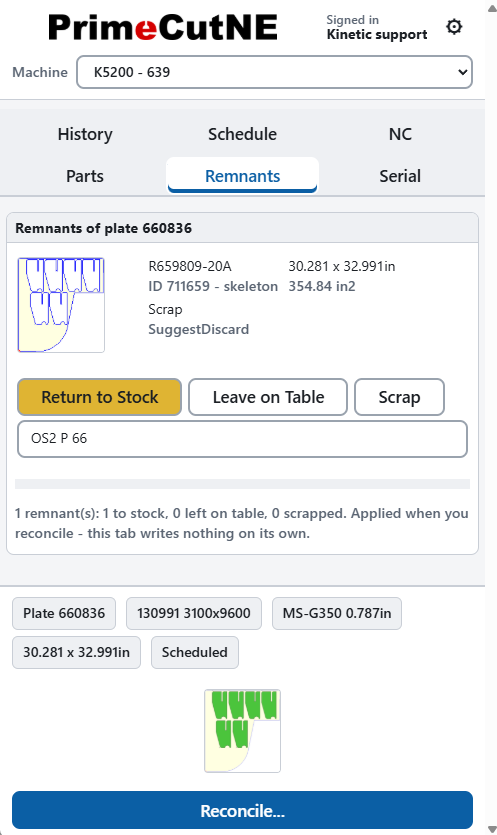
•see the parts nested on a plate, and the remnants it will leave
•read the NC program that was sent to the machine
•look back at plates that have already been cut
•reconcile a plate when you have finished cutting it
The app does not drive the machine. It records what happened.
The Operator App is served by the PrimeCut STP service. If STP is not running, the app will not open. See Troubleshooting the Machine Connection.
Opening the app
There is nothing to install. Open the browser on your phone or tablet and go to the address your supervisor gives you. It looks like this:
https://<server name>:<port>/primecut-gui/operator/
Save the address as a bookmark, or add it to the home screen of the tablet, so you do not have to type it again.
The address must start with https, not http. If the page is opened over plain http the Sign in button is switched off and the app tells you why. Ask for HTTPS to be turned on for the PrimeCut server.
Signing in
Type your PrimeCut user name and password, then tap Sign in.
•Use your PrimeCut user name, not your full name.
•Some PrimeCut accounts have no password at all. That is allowed. Leave the password box empty and tap Sign in.
•If the sign in fails, the app says only that the user name or the password is not correct. It does not say which one.
You stay signed in until you tap Log out or close the browser tab.
Your name is shown at the top of the screen under the words Signed in. Check it before you start. A shop floor tablet is shared, and the name shown there is the name that will be recorded against the plates you reconcile.
Choosing your machine
The machine box is at the top of the screen. Tap it and pick your machine. The app remembers your choice on that device, so you normally only do this once.
A machine with nothing in its queue does not appear in the list. If your machine is missing, that is usually why.
The tabs
The tabs run across the screen under the header. The app opens on Schedule.
Tab |
What it is for |
History |
Plates that have already been cut and reconciled. This is also the only place you can correct a reject count after a plate has been cut. You can choose how far back to look, and whether to show other machines. |
Schedule |
The cut queue for your machine, in the order the machine will work down it. Tap a row to select that plate. |
NC |
The NC program that was stored and sent to the machine for the selected plate. It is never a fresh one. You can read it and save it to a file. Any warnings or errors the post processor wrote into the program are listed at the top. |
Parts |
The parts nested on the selected plate, with a picture of each one. Enter here how many of each part you had to reject. |
Remnants |
The offcuts the plate is expected to leave. Choose what happens to each one. |
Serial |
The plate traceability: heat number, serial number, test certificate and mill of origin. You can also photograph the plate marking here and have the app read it for you. |
History and Schedule work straight away. The other four tabs are greyed out until you have selected a plate, and say Select a plate first when you tap them.
Choosing a plate
Tap a row on the Schedule tab, or on the History tab for a plate that has already been cut. The row you tapped is highlighted, and the rest of the app now works on that plate.
IMPORTANT:
Changing plate, changing machine or logging out throws away anything you have typed and not yet saved. If there is anything to lose, the app asks first and lists what would go - reject counts, remnant choices, plate details. Tap Keep editing to go back, or Discard to carry on. Tapping outside the box, or pressing Escape, always means keep editing.
The plate picture at the bottom
A strip along the bottom of the screen stays there whichever tab you are on. It shows the plate number, name, material, size and state, a picture of the nest, and the Reconcile button.
•Double-tap any nest or part picture anywhere in the app to see it full size. Tap anywhere to close it again.
•Drag the bar just above the strip up or down to make the picture bigger or smaller. Double-tap the bar to put it back to its normal size. The app remembers the size on that device.
See Reconciling a Plate in the Operator App.
Units and screen brightness
Tap the cog at the top right of the screen. It holds three things:
•Units - show sizes in mm or in. This changes the display only. Nothing you type is a size, so nothing is converted.
•Appearance - switch between the light and the dark screen. Use dark in a dim bay and light in a bright one.
•Log out.
Units and appearance are remembered on that device, and they stay set when you log out. The next operator at that machine gets the same screen.
On a phone and on a tablet
The app is the same app on both, but it lays itself out to fit.
•On a tablet or a screen at the machine, the app fills the screen and does not scroll as a whole. The lists are proper tables, and the plate picture sits at the bottom beside the Reconcile button.
•On a narrow tablet held upright, the bottom strip stacks instead: the plate details, then the picture, then the button.
•On a phone, the whole page scrolls from top to bottom like an ordinary web page. The header stacks and the machine box gets a line of its own. List rows become cards rather than table rows, with a picture and captioned fields. The bar for resizing the plate picture is not shown. On the Parts tab the None, -1, +1 and All shortcuts are hidden to save room - type the count into the box instead.