The Operator App is served by the PrimeCut STP service. There is nothing to install on the phone or tablet, but the REST API License must be held, and a few things set up on the server, before an operator can sign in.
Before you start: the REST API License
The Operator App reaches PrimeCut through the STP service's REST interface, and that interface is licensed separately. The REST API License is a purchased extra and is not included with PrimeCut. Contact Kinetic Engineering to buy it.
It is registered against your licence like any other extra, and appears as REST API License in the licence registration tool alongside the rest of them. Nothing is installed for it; once it is on your licence the STP picks it up when it next starts.
If the licence is missing or has expired the STP says so in its log at startup. Everything below can be set up without it, and will appear to work right up to the point an operator tries to use it, so it is worth confirming the licence first rather than last.
Before you start: the device must reach the server
Everything below assumes the phone or tablet is already on the works network and can reach the PrimeCut server. That normally takes care of itself when the device joins the right Wi-Fi. If a device has internet but the server page never loads, or the server is reached by IP address but not by name, or someone proposes typing a static address and gateway into the tablets, read Connecting a Phone or Tablet to the Operator App first.
1. Turn on HTTPS
The app will not sign anyone in over plain http. The Sign in button is switched off and the page says why. This is deliberate: the password, and the API key that every later request carries, would otherwise cross the network in the clear.
In STPService.ini:
[RestAPI]
Enable=1
HTTPS=1
https_port=8443
2. Give the server a certificate the devices will trust
A works server does not have a certificate bought from a certificate authority, so a browser cannot tell it apart from an impostor and warns every time it is opened. On an iPad it is worse than a warning: until the certificate is trusted, Safari will not let the app open the camera at all, so plate photographs cannot be taken.
Tell STP the name devices will use to reach it, and let it make its own certificate:
[RestAPISSLCert]
DomainNameForCertificate=YourServerName
CertFile=C:\PC4\stp64\certs\primecut.crt
KeyFile=C:\PC4\stp64\certs\primecut.key
If the certificate file does not exist, STP creates one when it starts. It names the address you gave, the machine's own short name and its network addresses, so a device reaching the server by any of those is satisfied. It does not name localhost, so test it by the name devices use rather than from the server's own browser. An existing certificate is never replaced — delete it if you want a new one made.
DomainNameForCertificate does not change any Windows or network setting. It is only ever written into the certificate. Leave the port off it: a certificate names hosts, not ports, and one certificate is valid on every port the server listens on.
Installing it on each device
The sign-in page has Browser warning about this site? at the bottom, which offers Download the certificate. Only the public certificate is ever handed out. If the server's certificate is stored in a form that also holds its private key, the download is refused rather than risk the key leaving the server.
Windows — read this before you double-click
Open the downloaded file and choose Install Certificate. When the wizard offers to choose a store for you, do not let it. Select Place all certificates in the following store, click Browse, and choose Trusted Root Certification Authorities.
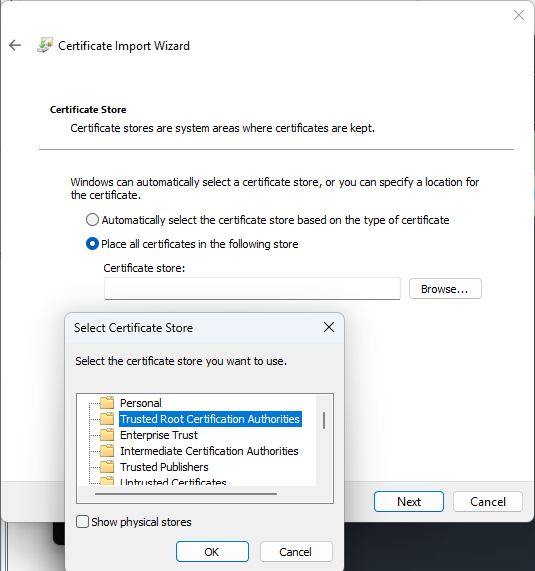
Left to itself, Windows reads the certificate and files it under Intermediate Certification Authorities, where it does nothing at all — and then reports that the import succeeded. Nothing on screen suggests anything is wrong, and the site stays untrusted. There is no setting on the PrimeCut side that changes this: Windows never picks Trusted Root automatically, because trusting a root means trusting everything it signs, and that is too consequential to happen by double-clicking a file.
iPhone or iPad — this takes two steps
Downloading only stores the profile. Then go to Settings, General, VPN & Device Management and install it; then Settings, General, About, Certificate Trust Settings and switch it on. The second step cannot be done from the web page, and the certificate does nothing until it is done.
Android
Downloading offers to install it. Give it any name you like.
Mac
Open the downloaded file to add it to Keychain Access, then set it to Always Trust.
Then restart the browser — completely
A browser remembers a certificate warning that has been clicked past, for that site, until it is restarted. So a certificate that has just been installed perfectly correctly can still show Not secure, which looks exactly like a failed installation.
On Windows, closing the window is not enough — Chrome keeps background processes running. Check that none survive before deciding the certificate has not worked.
3. Give each operator an API key
Every operator who signs in needs an API key on their PrimeCut account. One is not created automatically, and a new database has none.
In PrimeCut, open the user in User Management and generate an API key for them.
An operator without one is refused at sign-in with a message saying so. It does not fail silently, and it does not fail later.
4. Reading plate markings with a vision model (optional)
The Operator App reads a heat or serial number from a photograph on the device itself. Some markings defeat it - dot peen punched into bare steel, or stencil sprayed onto rusted plate. For those, PrimeCut can send the photograph to a vision model instead, which reads markings the built-in reader cannot. What it reads is offered as candidates to copy into the fields, exactly as before; nothing is filled in automatically.
This is optional. Left alone, the app uses the built-in reader and nothing changes.
Get a key and put a spending limit on it
The vision models are supplied through OpenRouter, which is a single account and a single key covering models from many suppliers. You buy credit up front; there is no subscription and no invoice to arrange.
1Go to openrouter.ai and sign in. It will take a Google or GitHub account, or an email address.
2Open the Credits page and add credit. Start small - OpenRouter charges in US dollars, and a reading costs in the region of seven cents per thousand photographs - so five dollars is a year of use for most shops. You can always add more.
3Leave auto top-up switched off. If it is on, the account refills itself and the balance stops being a limit at all. Off, the balance is a hard backstop: when it is gone, nothing more can be spent until somebody decides to spend it.
4Go to Settings, then Keys, and press Create Key.
5Give it a name that says where it is used - PrimeCut STP - Works 1 rather than key 2. When you come back in a year to revoke one, the name is all you have to go on.
6Fill in the Credit limit. Left blank the key can spend the whole account balance. Set it to what a month of reading ought to cost and no more.
7Copy the key. It is shown once. If you lose it, delete it and make another - there is no way to read it back.
When a key reaches its limit OpenRouter refuses further requests outright. Readings stop and the app says the reader is unavailable; nothing else in the Operator App is affected, and an operator can still type the numbers in as they always could. Raise the limit or add credit to start it again.
Set the limit at OpenRouter, not in PrimeCut. A limit at OpenRouter is enforced by them and applies to every reading made with that key, whichever route it took. A limit counted by PrimeCut could only ever see the readings this server made, so it would miss everything the tablets sent directly, and would quietly fail to cap anything.
A key that is only spending a dollar or two a year is still a key. Anyone who obtains it can spend the whole of its limit on anything OpenRouter offers, so treat it like a password: one key per place it is used, a limit on each, and delete rather than reuse when a device or a site is retired. The Activity page shows what has actually been spent and by which key, which is where to look if a bill surprises you.
Put the key in the settings file
In STPService.ini, paste the key in plain text:
[RestAPIOpenRouter]
ApiKey=paste-your-key-here
RouteOpenRouterCallsVia=STP
The next time the service starts it encrypts the key, writes it back as EncApiKey, and deletes the line you pasted. That is expected and not a fault - the readable copy exists only until the service next runs. Do not edit EncApiKey by hand; only the service can produce it.
Choose who makes the call
RouteOpenRouterCallsVia is STP, Browser or Off.
•Browser - the tablet calls out itself. The photograph never reaches this server, so scanning adds no load to it at all. Use this wherever tablets have their own internet route.
•STP - the tablet sends the photograph here and this server calls out. Use this for tablets that cannot reach the internet themselves. The photograph is queued and the answer collected a moment later, so a reading never holds up anything else the server is doing.
•Off - no vision model. The built-in reader is used on its own.
If you choose Browser, or if you turn on AllowBrowserDirect so tablets can keep reading when this server is not answering, the tablet needs its own key:
BrowserApiKey=paste-a-second-key-here
This key is handed to the tablet and can be read by anyone who opens the page. It must be a SEPARATE key from the one above, with its own spending limit set at OpenRouter. Never put the server's key here. It is encrypted in the settings file the same way, but that protects the file, not the browser.
Offer a choice of models
List the models an operator may choose between, as Label = model | US dollars per 1000 photographs. The label and the cost are what they see in the app, so write a label they will recognise, and keep the cost accurate yourself - nothing checks it.
[RestAPIOpenRouterModels]
Standard=google/gemma-3-27b-it|0.07
Newer=google/gemma-4-26b-a4b-it|0.09
Alternative supplier=amazon/nova-lite-v1|0.15
The service writes this section with a starting list the first time it runs. Every model in it was measured against a set of real plate photographs and read all of them, including a dot-peen marking the built-in reader cannot read at all.
The operator picks the model under the settings cog in the app, and can also turn the on-device reader on or off there.
A reader that cannot make out a marking says so rather than guessing. That is deliberate: a plausible wrong heat number is worse than none, because it will be acted on. Candidates are always shown for the operator to check against the plate before copying.
Things that look like faults and are not
What you see |
What it means |
Sign in is greyed out and the page mentions HTTPS |
The app was opened at an http:// address. Use https://. |
Certificate installed, browser still says Not secure |
Either it went into the wrong store, or the browser has not been fully restarted since it was installed. |
Sign-in refused with a message about an API key |
That account has no API key. Generate one for the user in User Management. |
The page never loads on the tablet at all |
The tablet is not reaching the server: wrong Wi-Fi network, isolated guest network, or a name it cannot resolve. See Connecting a Phone or Tablet to the Operator App. |
Sign in fails and will not say why |
Deliberate. The app never says whether it was the user name or the password that was wrong. |