PrimeCut NE is installed once on a server, and then on each workstation that will run the client. This topic covers the first-time server installation, performed with the NE_Server_Setup_x64.exe installer supplied by Kinetic. To install the client on workstations afterwards, see Installing PrimeCut NE on Client Computers. To move an existing installation to a newer release, see Updating PrimeCut NE on the Server.
Before you begin
1.Check the machine against Architecture and System Requirements. The server should be always on, regularly backed up, and not set to sleep or hibernate.
2.Log on to the server at its console, or by Remote Desktop, as a user with administrative rights. The installer registers Windows services and creates a network share, so it cannot complete without them.
3.Allow around 1.6 GB of disk space for a full installation, plus room for the database and its nightly backups.
4.If the server already runs a Firebird database for another application, talk to Kinetic first - the two installations may need additional configuration to coexist.
Running the Setup wizard
Right click NE_Server_Setup_x64.exe and choose Run as administrator. The installer is around a gigabyte, so it may take a little while to unpack before the first page appears.
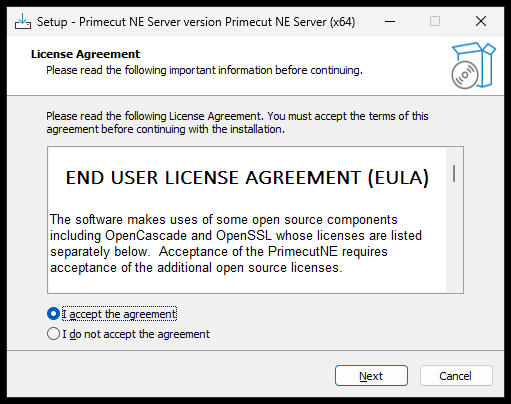
1.Read the License Agreement, select I accept the agreement and click Next.
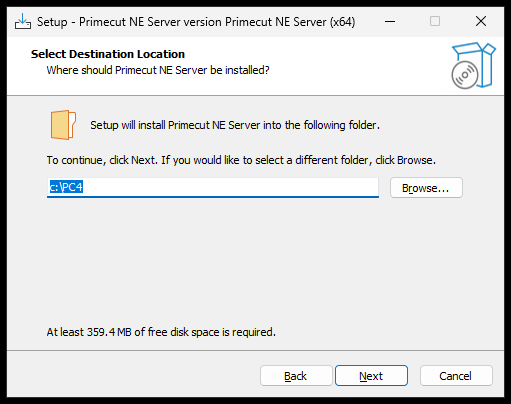
2.Accept the default installation folder c:\PC4 unless you have a reason to change it. Much of the documentation, and Kinetic support, assume this location.
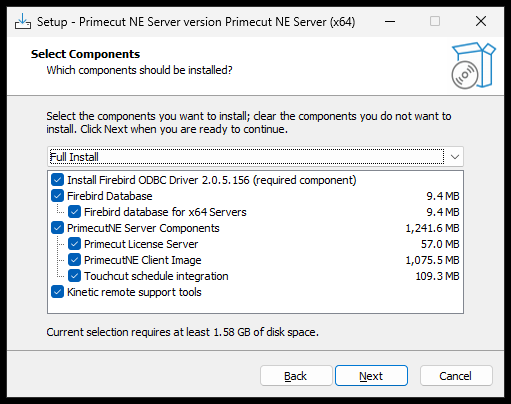
3.Leave the Full Install component selection in place. This installs the Firebird database and its ODBC driver, the PrimeCut licence server, the client image that workstations install and update from, and the Touchcut schedule integration (STP).
Accept the default Start Menu folder on the following page.
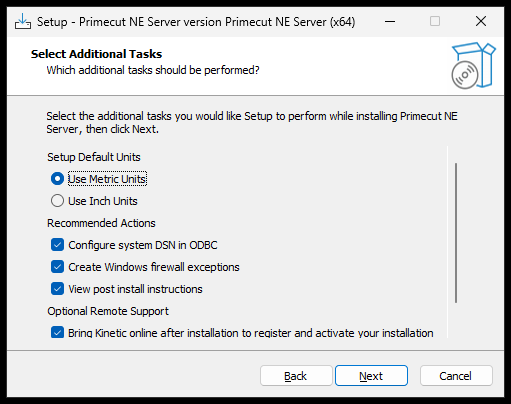
4.On Select Additional Tasks, choose the units your site works in. Inch units are selected by default, so metric sites must change this. Leave the three recommended actions ticked - they create the database ODBC connection, open the Windows firewall ports PrimeCut needs, and show the post-installation instructions at the end.
5.Review the summary on Ready to Install and click Install.
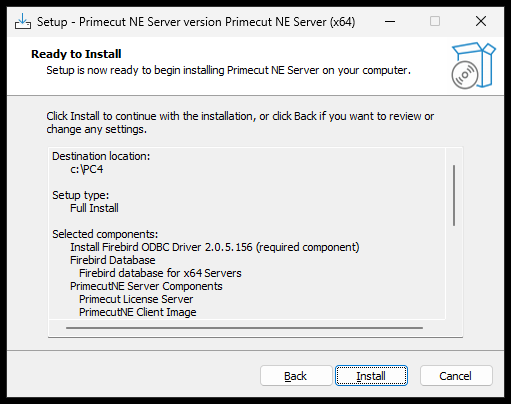
Setup copies its files and then installs the Firebird database server, the PrimeCut licence service and the STP service.
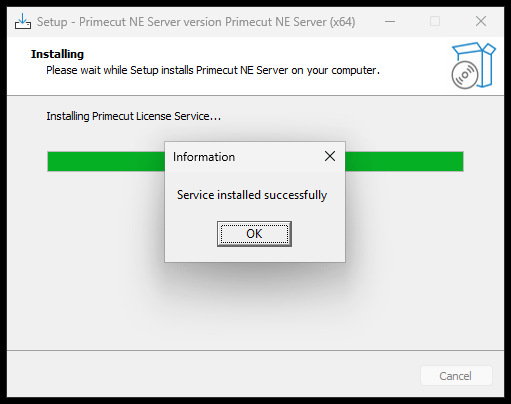
While the services are being installed, Setup shows an Information box reading Service installed successfully. It appears twice - once for the licence service and once for the STP service - and the installation waits at each one until you click OK. The progress bar sits at full while it waits, which can look as though the installer has frozen. It has not: click OK and it continues.
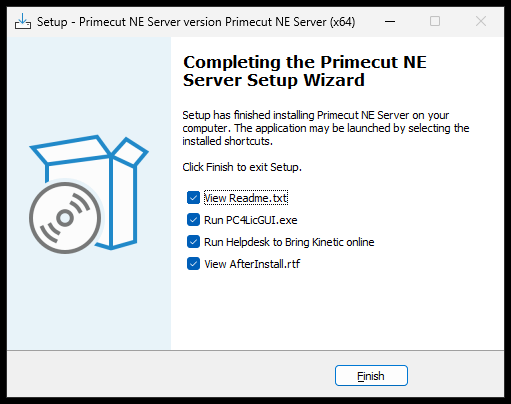
When the installation finishes
The final page offers to open the readme, run the licence server manager, and show the post-installation instructions. Leave these ticked.
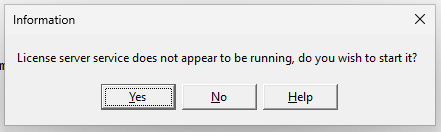
The licence server manager opens and reports that the service is not yet running. Click Yes to start it. This also starts the STP service, and the production datastore comes online.
What Setup has configured
Item |
Detail |
Installation folder |
c:\PC4 - holding the databases, License64, STP64, the client image in Primecut4, and the Backup and Update folders |
Windows services |
PC4 License Server x64, and PC4 STP Server for Touchcut machine integration. Both start automatically with the server |
Databases |
Primecut4.fdb, the production datastore, and Tutorials.fdm, the read-only master used to create tutorial databases |
Network share |
\\<YOURSERVER>\UpdatePrimecut - the client image that workstations install and update from. Clients need read access to it |
Firewall ports |
TCP 2020 licence server, UDP 2021 server discovery, TCP 2025 Touchcut machine integration, TCP 3050 Firebird |
ODBC |
A system data source named PC4, pointing at the production database through the Firebird driver |
Next steps
1.Obtain registration codes from Kinetic. Until the installation is licensed, users cannot log in - see License Registration.
2.Install the client on each workstation - see Installing PrimeCut NE on Client Computers.
3.If the site has Kinetic profiling machines, configure them to talk to the STP service - see Connecting Touchcut To Primecut.
4.Check the backup settings for the production datastore - see Configuring Backup.