The PowerFab menu appears when the datastore is marked as working with Tekla EPM, see Tekla EPM Datastore Settings. It reaches PowerFab through the same connection the nest request uses, so the Tekla EPM settings must be complete on this computer.
Get Inventory
PowerFab->Get Inventory asks PowerFab for its plate inventory and lists every record it can read.
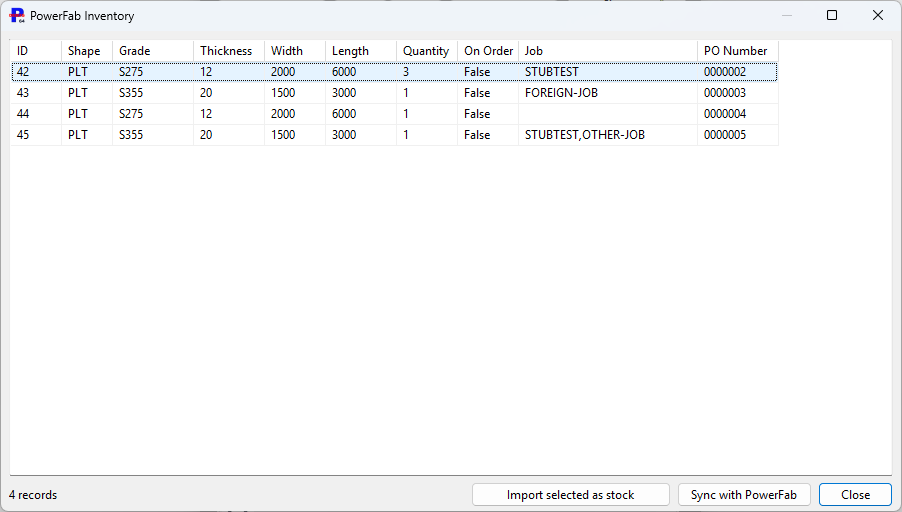
PowerFab inventory as PrimeCut NE reads it
Column |
Meaning |
ID |
PowerFab's inventory item id. PrimeCut NE keeps it on every plate it creates for the item and matches on it from then on. |
Grade, Thickness, Width, Length |
As PowerFab reports them, converted to your display units. The grade and thickness must exist in PrimeCut NE's Materials before the item can be imported. |
Quantity, On Order |
Plates PowerFab holds. On Order means material on a draft purchase order, not yet received. |
Job |
The job the item is reserved to in PowerFab; blank when it is not reserved. A plate that several jobs have shared shows them all, separated by commas. |
PO Number |
The purchase order the material came in on. |
Records PrimeCut NE cannot read, for example an item whose size is not two dimensions, are left out and named below the list so they can be looked up in PowerFab.
Import selected as stock
Creates PrimeCut NE stock plates for the selected items, one plate per unit of quantity, carrying the PowerFab id, purchase order and job. Importing an item a second time tops up or trims its plates to PowerFab's quantity rather than doubling them. The summary names every item imported and every item skipped, with the reason:
•the grade and thickness are not set up in Materials;
•with job scoping on, the item is reserved to a job PrimeCut NE has no open work for - see Tekla EPM Job Scoping.
Sync with PowerFab
Reads the inventory again and brings PrimeCut NE's plates into line with it. With Tekla inventory stock tracking on, plate counts follow PowerFab's quantities. With job scoping on, every plate and remnant PrimeCut NE holds for a PowerFab item takes the job PowerFab now reports, and a free plate that has become reserved to a job PrimeCut NE has no work for is removed. The same sync runs by itself after a nest request opens, after a plate is scheduled and after one is cut.
Plates that another PrimeCut NE session has open are not touched; the message after the sync names them so they can be refreshed from that session.
How Tekla plates are named in the workspace
In the workspace plate list a plate that came from PowerFab is captioned the way PowerFab knows it: its inventory item id (or, for a remnant PowerFab has listed, the remnant name), followed by the job it is reserved to, and Nest 41 while it is scheduled - that nest number is what PowerFab shows against the inventory it reserved for the nest. Unscheduling the plate removes the nest number again. The PrimeCut NE plate id is shown in the plate's Properties.
See Also
Tekla EPM (PowerFab) Integration
How the Tekla EPM Integration Works
Recommended Primecut Settings to work with Tekla EPM