Over time, a PrimeCut NE production database can grow very large as completed workorders and plates accumulate. The Reduce Database tool creates a smaller copy of the production database by removing historical workorders beyond a specified cutoff date. The original database is preserved intact as a read-only archive.
This operation requires a SYSDBA database password. Contact Kinetic for assistance — do not attempt a database reduction without the correct password.
When to Use
Use Reduce Database when:
•The production database has grown large (typically several years of accumulated jobs).
•Disk space on the server is running low.
•You want to keep historical records accessible but separate from the active production database.
Before You Begin
Ensure the following before starting:
•PC4LicGUI is open on the server, running as Administrator.
•The Firebird database service is running.
•All PrimeCut NE users are logged off the production database.
•Free disk space on the server is at least equal to the current database file size (the tool creates a full copy before trimming).
•You have the SYSDBA password (contact Kinetic).
Opening the Dialog
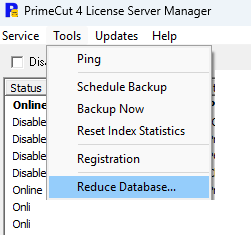
In PC4LicGUI, click the Tools menu and choose Reduce Database.
Completing the Form
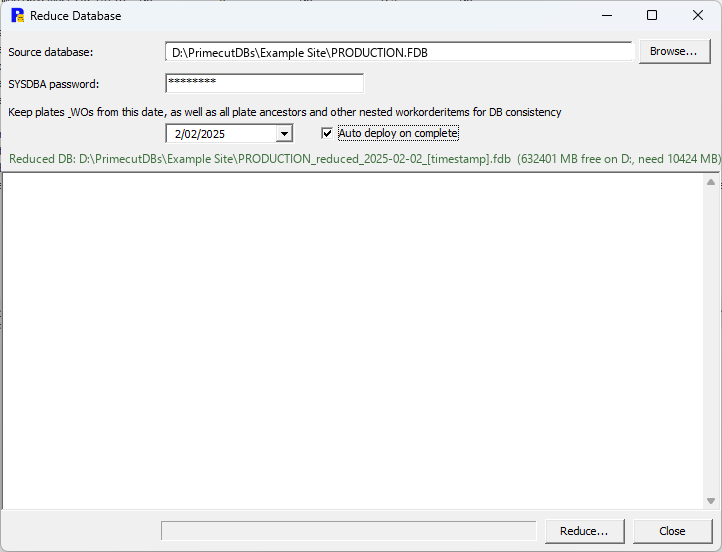
Field |
What to enter |
Source Database |
Path to the production .fdb file. Click Browse to locate it. The DataStores panel in PC4LicGUI shows the path for each registered database. |
SYSDBA password |
SYSDBA password for the Firebird database. Contact Kinetic if you do not have this. |
Keep plates_WOs from this date |
The cutoff date. Workorders created before this date will be removed from the reduced copy and remain only in the archive. Choose a date that keeps all work still in progress or recently completed. |
Auto deploy on complete |
When ticked, the reduced database is deployed as soon as the reduction finishes, without any further prompting. When left unticked, a summary message is shown at the end of the run and you are asked to confirm before deployment begins. |
The Reduced DB label below the date shows the filename that will be given to the reduced database, together with the free space available on the target drive and the space the operation needs. Check these two figures before starting.
Disk space: If the source drive does not have enough free space for the archive copy, the tool will attempt to use the backup folder configured in Configuring Backup. If neither location has enough space, the operation will stop and report an error — free up space before retrying.
Running the Reduction
1.Click Reduce. A confirmation dialog summarises what will happen.
2.Click Yes to proceed. The log panel shows progress as the tool: clones the database, reads the schema version, generates a removal script, and runs it against the clone.
3.When the reduction finishes, a summary message reports how many workorders were kept past the cutoff for referential integrity (see note below). If Auto deploy on complete was ticked, this message is skipped and deployment starts straight away — the same detail is still written to the log panel.
Referential integrity: A small number of workorders dated before the cutoff may be retained in the reduced database if they share plate or nesting data with newer workorders. To keep the data consistent, the reduction keeps every plate sharing the same ancestry, re-adds any workorder items nested on those plates, and preserves all quantities on the affected workorders. These are kept automatically to avoid broken references, and remain accessible in the production database after deployment.
Quantities on partially trimmed workorders: Where a workorder is retained but some of its history is not, the quantity still to nest is left unchanged by means of a corrective adjustment, and a note is added to the workorder or quote recording that the database was reduced. If you see such a note on an old job, it is expected and needs no action.
Deploying the Reduced Database
Deployment replaces the live production database with the reduced copy. It runs automatically when Auto deploy on complete is ticked; otherwise a dialog asks whether to deploy now.
Deployment performs the following steps automatically:
1.Stops the STP, License, and Firebird services.
2.Compacts the reduced database with a Firebird backup and restore. Removing the old workorders frees space inside the database file but does not shrink the file itself; the backup and restore is what actually reclaims it. If the drive does not have enough free space for this step it is skipped, a warning is written to the log, and the uncompacted database is deployed instead.
3.Renames the original database file to an archive filename (e.g. Production_archive_20260617-103000.fdb).
4.Renames the reduced copy to the original production filename.
5.Restarts the services that were running before.
6.Registers the original database as a new read-only archive datastore in PC4LicGUI, and sets the file itself to read-only at the Firebird level.
If you decline the deployment prompt, the log panel shows the manual rename steps needed to deploy later.
After Deployment
After a successful deployment:
•The production datastore now uses the smaller, reduced database.
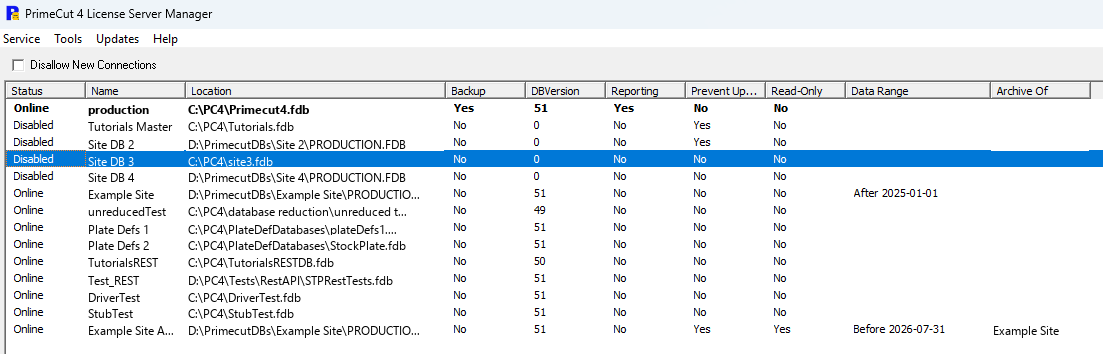
•A new read-only archive datastore appears in PC4LicGUI's DataStores panel. Its name follows the pattern <StoreName> Archive <YYYYMMDD>.
•Historical data before the cutoff date remains fully accessible via the archive datastore.
•The Data Range and Archive Of columns in the DataStores panel show which dates each database now covers.
See also: Archive Datastores, Copy To Production